
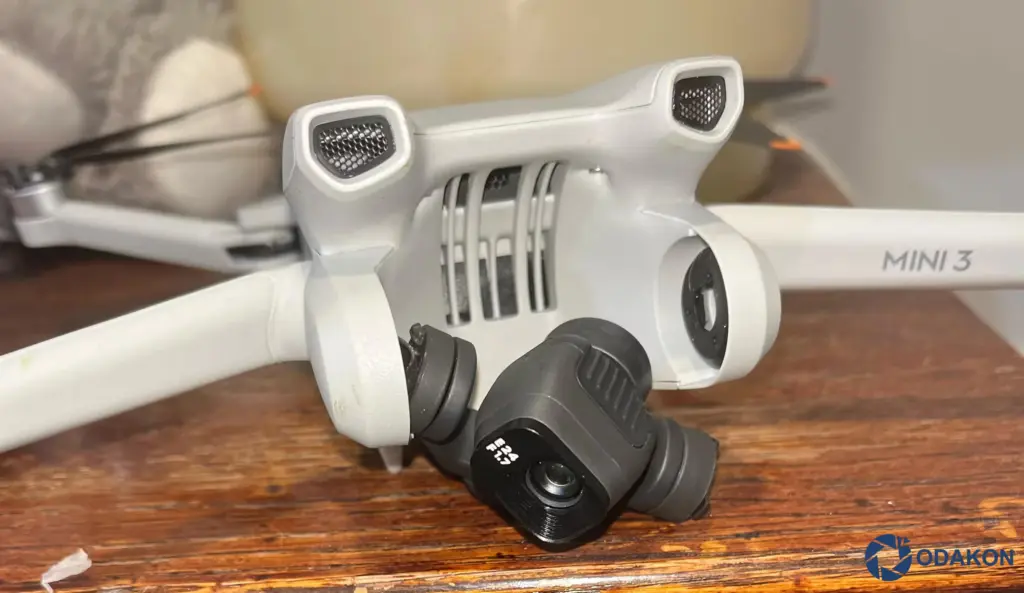
Mini 3 Kırık Gimbal Lastik

DJI Gimbal Stuck Warning: What It Means & How to Calibrate Your Gimbal (Error 40002)

How to Fix DJI Gimbal Stuck (Error: 40002)

You excitedly prepared your drone, inserted the batteries, turned on the controller, and you’re all set for an amazing shoot. But then that annoying red warning appeared on the DJI Fly app screen: “Gimbal Stuck”.

Don’t panic. This is a common issue that DJI drone (Mini, Air, Mavic series) users frequently encounter, and the solution is usually simpler than you think. As the ODAKON technical team, in this guide we’ll explain the causes of the “Gimbal Stuck” error, the safe troubleshooting steps you can perform at home, and most importantly, how to properly calibrate your gimbal in full detail.

What Does the “Gimbal Stuck” Warning Mean?

The gimbal is the precision 3-axis mechanism that holds your drone’s camera steady, prevents vibrations, and enables you to capture cinematically smooth footage.

The “Gimbal Stuck” warning means the gimbal motors are trying to move the camera to the desired position but have encountered a physical obstruction. The motors protect themselves from overloading and damage by triggering this warning.

What Causes This Error? Most Common Reasons

Before solving the problem, we need to understand its source. Here are the most frequently encountered scenarios:

  1. Forgetting the Gimbal Protector Cover: Yes, it may sound funny, but based on our experience, 60% of this error comes from forgetting to remove the transparent gimbal protector cover before powering on the drone. However, since you’re reading this article, this is probably not the case for you.
  2. Foreign Objects and Debris: A tiny grain of sand, dust buildup, blade of grass, or feather trapped in the gimbal mechanism during landing or takeoff can restrict the movement of the precision motors. In this case, send your device to a service center and request maintenance.
  3. Hard Landing or Post-Crash Damage: A hard landing or crash can cause millimetric bends in the gimbal arms that are difficult to see with the naked eye. These bends cause motor friction. In most cases the damage is visible, but sometimes there can be damage that isn’t visible from the outside.
  4. Starting on Uneven Ground: When a drone is first powered on, the gimbal performs a self-check. If the drone is on a very tilted or uneven surface (such as tall grass), the camera can’t move because it touches the ground, and it thinks it’s stuck. The same can happen if it contacts the propellers—make sure the device’s arms are in the open position.
  5. Software Anomalies: Rarely, after a firmware update or on devices that haven’t been used for a long time, sensors can drift and require recalibration. But this is very unlikely—if you’re getting this warning after a crash, it’s 99% not software-related.

⚠️ Warning: Invisible “Flex Cable” Damage

On Mavic Mini, Mini 2, Mini 2 SE, and Mini 4K models, the sneakiest cause of the “Gimbal Stuck” error is cable tears that aren’t visible from the outside. Even if your device shows no signs of a crash, this part can wear out over time.

Step 1: Diagnosis

Check the black ribbon cable behind the gimbal. If the cable is too loose or has a tear like in the image below, replacement is necessary.

DJI Mini Series Flex Cable Tear
Example: Close-up of a torn flex cable.

Step 2: Solution & Replacement

Replacing this part requires technical skill. You can watch the ODAKON tutorial video below to get an idea of the procedure.

View & Buy Compatible Flex Cable →

100% Compatible ODAKON Spare Part

Step-by-Step Solution: Physical Checks Before Calibration

Before starting software calibration, we need to be 100% sure the problem isn’t physical. Otherwise, trying to calibrate a stuck motor can cause further damage.

WARNING: The drone must be OFF during these procedures.

Step 1: Check the Cover Make sure the gimbal protector cover has been removed.

Step 2: Gentle Manual Check With the drone off, very gently move the gimbal with your fingertips in all 3 axes (up-down, left-right, and horizontal). Do you feel any catching, friction sounds, or resistance? The movement should be completely smooth. If it catches with a “click” at some point, there’s a physical problem.

Step 3: Cleaning (Use an Air Blower) Never blow with your mouth (saliva particles can damage electronic circuitry). Use a photographer’s air blower or low-pressure compressed air spray to clean between the gimbal motors. This step is critical especially if you’ve been flying in beach or dusty environments.

Step 4: Auto Startup Check When you start the device, analyze the head movement—is there a point where it gets stuck? If there’s a repeating movement pattern, the motor on that axis may be faulty.


How Does the Gimbal “Say Hello”?

When you first power on your drone (start-up), the gimbal motors perform an automatic calibration movement to check all axes. In technical service, this is called the “Gimbal Greeting.”

If your device doesn’t move smoothly like in the videos below during startup, vibrates, or stays stationary, getting the “Gimbal Stuck” error is inevitable.

.odakon-player-container { display: flex; flex-wrap: wrap; gap: 20px; justify-content: center; margin: 30px 0; }.odakon-video-box { flex: 1; min-width: 300px; background: #fff; border: 1px solid #eee; border-radius: 12px; padding: 10px; box-shadow: 0 4px 10px rgba(0,0,0,0.05); }.video-shell { position: relative; width: 100%; padding-bottom: 56.25%; background-color: #000; border-radius: 8px; overflow: hidden; }.video-shell video { position: absolute; top: 0; left: 0; width: 100%; height: 100%; object-fit: cover; }.custom-play-btn { position: absolute; top: 0; left: 0; width: 100%; height: 100%; background: rgba(0,0,0,0.2); display: flex; align-items: center; justify-content: center; cursor: pointer; z-index: 5; transition: background 0.3s; }.custom-play-btn:hover { background: rgba(0,0,0,0.1); }.play-icon-circle { width: 60px; height: 60px; background: rgba(255, 255, 255, 0.9); border-radius: 50%; display: flex; align-items: center; justify-content: center; box-shadow: 0 4px 15px rgba(0,0,0,0.3); transition: transform 0.2s; }.play-icon-triangle { width: 0; height: 0; border-left: 20px solid #333; border-top: 12px solid transparent; border-bottom: 12px solid transparent; margin-left: 4px; }.video-shell.is-playing .custom-play-btn { display: none; }@media (min-width: 768px) { .custom-play-btn { display: none !important; } }

DJI Mini 4 Pro

DJI Mini 2 / SE

function playVideo(vidId, shellId) { var video = document.getElementById(vidId); var shell = document.getElementById(shellId);if (video.paused) { video.play(); shell.classList.add(‘is-playing’); } else { video.pause(); shell.classList.remove(‘is-playing’); } }document.addEventListener(“DOMContentLoaded”, function() { if (window.innerWidth >= 768) { var lazyVideos = [].slice.call(document.querySelectorAll(“video.odakon-lazy-vid”));if (“IntersectionObserver” in window) { var videoObserver = new IntersectionObserver(function(entries, observer) { entries.forEach(function(entry) { if (entry.isIntersecting) { var video = entry.target; video.play(); videoObserver.unobserve(video); } }); });lazyVideos.forEach(function(video) { videoObserver.observe(video); }); } } });

Detailed DJI Gimbal Calibration Guide (Software Solution)

If you’re sure there’s no physical obstruction, the problem is most likely that the sensors have lost their “center” point. Here’s how to fix it:

Note: These steps are generally the same for DJI Mini 3 Pro, Mini 4 Pro, Air 2S, Air 3, and Mavic 3 series. They use the DJI Fly app.

Preparation:

  • Place the drone on a flat surface.
  • Removing the propellers for safety is recommended (not mandatory but advised).
  • Turn on the drone and controller, then connect to the DJI Fly app.

Application Steps:

  1. Switch to the camera view (Go Fly) in the DJI Fly app.
  2. Tap the three dots () in the top right corner to open the menu.
  3. Navigate to the “Control” tab on the left side.
  4. Scroll down and find the “Gimbal Calibration” option.
  5. You may see two options: “Auto” and “Manual”. What we need is “Auto” calibration.
  6. After clicking “Auto,” tap “Start.”

The Process Begins: At this point, your drone’s camera will start making strange movements on its own, rotating to different angles and vibrating. This is completely normal.

  • Critical Rule: During the calibration process (which usually takes 30 seconds to 1 minute), never touch the drone or shake the table.

When the process is complete, you’ll see a “Calibration Successful” message on screen. Now check if the warnings have cleared. If you get a failure message or it gets stuck at a percentage like 80%, we can conclude that your gimbal hardware is damaged.

.odakon-diagnostic-wrapper { background-color: #fcfcfc; border: 1px solid #edf2f7; border-radius: 8px; padding: 30px 20px; margin: 40px 0; font-family: -apple-system, BlinkMacSystemFont, “Segoe UI”, Roboto, Helvetica, Arial, sans-serif; }.odakon-diag-header { border-left: 4px solid #3182ce; padding-left: 15px; margin-bottom: 30px; }.odakon-diag-title { margin: 0; color: #1a202c; font-size: 1.25rem; font-weight: 700; letter-spacing: -0.5px; }.odakon-diag-subtitle { margin-top: 5px; color: #718096; font-size: 0.95rem; line-height: 1.5; }.odakon-grid { display: grid; grid-template-columns: repeat(auto-fit, minmax(260px, 1fr)); gap: 20px; }.odakon-card { background: #fff; border: 1px solid #e2e8f0; border-radius: 6px; overflow: hidden; transition: box-shadow 0.2s; display: flex; flex-direction: column; }.odakon-thumb { width: 100%; height: 180px; object-fit: cover; border-bottom: 1px solid #f7fafc; background-color: #f7fafc; }.odakon-body { padding: 15px; display: flex; flex-direction: column; flex-grow: 1; }.odakon-item-title { font-size: 0.95rem; font-weight: 700; color: #2d3748; margin: 0 0 8px 0; }.odakon-text { font-size: 0.85rem; color: #718096; line-height: 1.5; margin-bottom: 15px; flex-grow: 1; }.badge-warning { display: inline-block; background: #fff5f5; color: #c53030; padding: 2px 6px; border-radius: 3px; font-size: 0.7rem; font-weight: 600; margin-bottom: 8px; text-transform: uppercase; }.odakon-btn { display: block; text-align: center; background-color: #3182ce; color: #fff; padding: 10px; border-radius: 4px; text-decoration: none; font-size: 0.85rem; font-weight: 600; transition: background 0.2s; }.odakon-btn.secondary { background-color: #4a5568; }.odakon-legacy-alert { margin-top: 25px; padding-top: 20px; border-top: 1px solid #e2e8f0; display: flex; align-items: center; justify-content: space-between; flex-wrap: wrap; gap: 15px; }.odakon-legacy-text { font-size: 0.9rem; color: #4a5568; }.odakon-link-text { color: #3182ce; text-decoration: underline; font-weight: 600; font-size: 0.9rem; }

Damage Assessment & Solution Recommendations

Match the physical condition of your device with the images below to determine the appropriate part or service needed.

DJI Mini Series Torn Gimbal Flex Cable

Flex Cable Tear

If the black ribbon cable behind the gimbal has a tear or deformation, image transmission is interrupted and the gimbal gets stuck.

View Compatible Part
DJI Mini 2 Broken Gimbal Body

Gimbal Body Fracture

If the mechanical arms holding the camera are broken, replacing the gimbal body rather than gluing is the definitive solution.

Affordable Gimbal
DJI Mini Gimbal Rubber Breakage
Critical Check Required

Rubber (Damper) Breakage

If the rubbers broke after a fall, the motors may also be damaged. If only the rubber is damaged, use this set.

Mini 4 Pro Rubber Set
DJI Drone Severe Gimbal Damage
Service Intervention Required

Detached / Severe Damage

If the camera has completely separated from the body or cables are torn, professional repair is required.

Contact ODAKON Service
Mavic Pro / Platinum users — Flex Cable solution: View Mavic Pro Flex Cable →
In any crash situation, you can contact our service that offers emergency repairs so your work doesn’t get interrupted. Feel free to reach us anytime via WhatsApp or phone.
Contact Us →

Problem Persists? Advanced Solutions

If calibration didn’t clear the error, there are two more steps you can try:

1. IMU Calibration: Gimbal problems can sometimes be related to the drone’s main balance system, the IMU (Inertial Measurement Unit). Follow the steps through Menu > “Safety” > “IMU Calibration” to perform sensor calibration, then try Gimbal calibration again. (VERY LOW PROBABILITY)

2. Firmware Refresh with DJI Assistant 2: If you’re getting a “Gimbal Stuck” warning after a crash, this step most likely won’t work either, but it’s worth trying. Connect the drone to a computer, open DJI Assistant 2 software. Reinstall the same firmware version over your current one (Refresh option). This repairs potentially corrupted system files.

.odakon-faq-container { max-width: 100%; margin: 50px 0; font-family: -apple-system, BlinkMacSystemFont, “Segoe UI”, Roboto, Helvetica, Arial, sans-serif; }.odakon-faq-header { text-align: center; margin-bottom: 30px; }.odakon-faq-title { color: #2d3748; font-size: 1.8rem; font-weight: 700; margin-bottom: 10px; }.odakon-faq-desc { color: #718096; font-size: 1rem; }details.odakon-faq-item { background: #ffffff; border: 1px solid #e2e8f0; border-radius: 8px; margin-bottom: 15px; overflow: hidden; transition: all 0.3s ease; }details.odakon-faq-item:hover { border-color: #cbd5e0; box-shadow: 0 2px 8px rgba(0,0,0,0.04); }details.odakon-faq-item[open] { border-color: #3182ce; box-shadow: 0 4px 12px rgba(49, 130, 206, 0.1); }summary.odakon-faq-question { padding: 20px; cursor: pointer; font-weight: 600; color: #2d3748; font-size: 1.1rem; list-style: none; position: relative; display: flex; align-items: center; justify-content: space-between; }summary.odakon-faq-question::-webkit-details-marker { display: none; }summary.odakon-faq-question::after { content: ‘+’; font-size: 1.5rem; color: #3182ce; font-weight: 300; line-height: 1; transition: transform 0.2s; }details[open] summary.odakon-faq-question::after { content: ‘2212’; color: #e53e3e; transform: rotate(180deg); }.odakon-faq-answer { padding: 0 20px 20px 20px; color: #4a5568; line-height: 1.7; font-size: 0.95rem; border-top: 1px solid #f7fafc; margin-top: -10px; padding-top: 20px; }.odakon-faq-answer strong { color: #2c3e50; }.odakon-faq-answer a { color: #3182ce; text-decoration: underline; }

Frequently Asked Questions About DJI Gimbal Malfunctions

We’ve compiled the most common questions our technical service receives along with expert answers.

Is “Gimbal Motor Overload” the same as “Gimbal Stuck”?
They are very similar but have technical differences. “Gimbal Stuck” appears when the motor cannot move at all (forgotten cover or physical blockage). “Gimbal Motor Overload” appears when the motor is trying to move but encountering excessive resistance (wind, trapped grass, damaged bearing). The solution for both is usually physical cleaning or part replacement.
My drone didn’t crash but the camera is shaking (Jello Effect), why?
Even without a crash, gimbal vibration (Jello Effect) usually occurs for two reasons:
1. Propeller Damage: Millimetric deformations in propellers that are hard to see with the naked eye cause body vibration that the gimbal can’t compensate for. Replace your propellers first.
2. Gimbal Rubbers (Dampers): The rubber mounts holding the gimbal may have hardened over time or come loose. Gimbal rubber replacement will solve the problem.
Gimbal calibration keeps getting stuck at 40% or 90%, what should I do?
If automatic calibration freezes at a certain percentage, this is the clearest sign of a hardware malfunction. The software cannot receive data from one of the motors (Pitch, Roll, or Yaw). This usually results from Flex Cable breakage or a malfunctioning gimbal driver IC on the mainboard. It cannot be fixed at home and requires part replacement.
Can only the gimbal glass be replaced on DJI Mini series?
Yes, if only the outer protective glass is cracked and there are no issues with the camera’s sensor/lens, only glass replacement is possible. However, if the impact was severe, the lens mechanism may also be jammed. You can send your device to ODAKON technical service for a free malfunction assessment.
What does error code 40002 mean?
Code 40002 is the technical code for the “Gimbal Stuck” error. The device reports that the gimbal motors cannot reach the angle they’re supposed to rotate to. The solution steps are as described in our article: first physical check, then air cleaning, and calibration. If it doesn’t resolve, Flex Cable replacement is needed.
Can I replace the Gimbal Flex Cable myself?
Flex cable replacement on DJI Mini and Mavic series requires high technical skill. The cable runs through complex motor paths, and an incorrect fold can tear the cable again. Additionally, a special software “Gimbal Joint Calibration” may be required after replacement. If you trust your manual skills, you can purchase the product from the ODAKON Store, but the risk is yours.

When Should You Contact ODAKON?

You tried all the steps above, did the cleaning, completed the calibration, but your drone stubbornly keeps giving the “Gimbal Stuck” error or the camera looks crooked in one direction—the issue is hardware-related.

  • Ribbon Cable Damage: There may be an invisible break or abrasion in the data cables running through the gimbal, as thin as human hair. This is the most common hardware failure.
  • Motor Failure: One of the gimbal motors may have lost function.
  • Axis Shift: A millimetric bend in the gimbal arm after a crash can cause permanent jamming that cannot be fixed at home.
  • PTZ Cable Damage: Just as flex damage occurs in Mini 1, Mini 2, Mini 2SE, and Mini 4K models, PTZ damage can also occur in Mini 3 / Mini 3 Pro / Mini 4 Pro and Mini 5 Pro models. It’s not as easy to detect as flex damage—it’s impossible to check the cable from the outside.

The ODAKON Difference: In such cases, continuing to force the gimbal can damage the main board. At ODAKON, with our technical service specialized in DJI products, we perform guaranteed gimbal repairs using original spare parts and precision equipment.

Leave a Comment

Your email address will not be published. Required fields are marked *

Share this article
We use cookies to improve your experience, analyze traffic, and personalize ads. For details, see our Privacy Policy.